That is everything I need from you, as there will be no further inquiries. The following task is to comply with the instructions detailed below, which will hopefully aid you in adding the Butlins Memorabilia website to your device - Mark
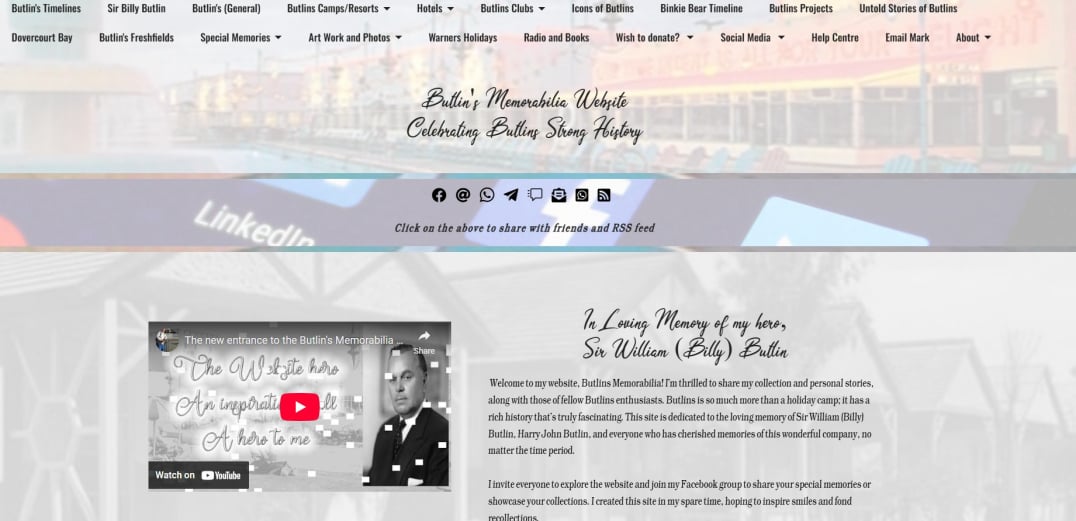
Here is an in-depth guide on how to set up the Butlins Memorabilia website as an icon on your device. Don't forget to make some quick notes from this to support you.
Step 1
First, you must find the page you intend to bookmark on the Butlins Memorabilia website. For instance, if the Minehead section is your choice, click on the menu for that section to save it. If you like the whole website, click on the home page located here:
https://www.butlinsmemorabilia.co.uk
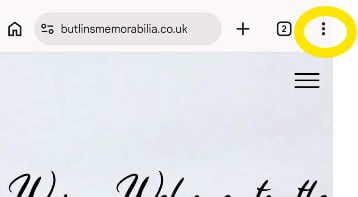
Press the three dots situated in the upper right-hand corner of your device (they can sometimes be displayed as three lines)
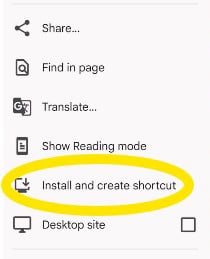
A menu will now pop up on the device, revealing the options accessible to you. Search for the option that states "Add to home screen."
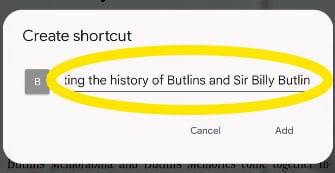
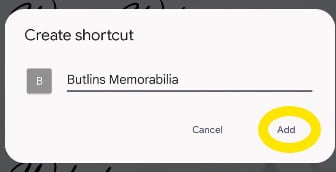
A notification will show up on your device, requesting your confirmation to create a shortcut. Please click on "Add"
Note
This is not an application; it is simply a shortcut to the website, allowing for quick access. With just one click, it will open your browser app to the site. This does not get installed on your device; it functions merely as a shortcut, akin to a bookmark added to a PC's browser.
The Google Chrome browser may prompt you to re-add the shortcut; simply click on "Add to home screen".
Congratulations!
You have successfully added the Butlins Memorabilia website to your Android device. We appreciate your visit to the site and are thrilled to know that you enjoy it.